
Using shifts allows you to easily divide reservations into the required time slots. To get started, we first configure your business's opening hours.
Step 1: Set Your Opening Hours
In this example, the business is only closed on Mondays. On all other days, both lunch and dinner are offered.
Opening hours are set according to the times visible to customers on Google or in your reservation widget.
Step 2: Setting Up Shifts
To create a shift, click the plus (+) icon at the top right.
A pop-up window will then appear.
This screen is devided in Basic Info, Capacity & Tables and Flows.
Example Shift: Lunch
First add Basic Info
Name: Lunch
The name is visible to customers during booking. Keep it short and clear.
Order
This determines how the shift is displayed in the reservation module for the customer.
Days of the Week
You can assign a shift to specific days, which overrides the regular opening hours.
In this example, we select Tuesday through Friday.
Book From & Until
Here you set the start and end time of the shift.
If lunch runs from 12:00 to 15:00, fill in:
Start: 12:00
End: 14:59
Strict mode
If enabled, every reservation needs a shift. The system will not check shift hours. (Recommended OFF)
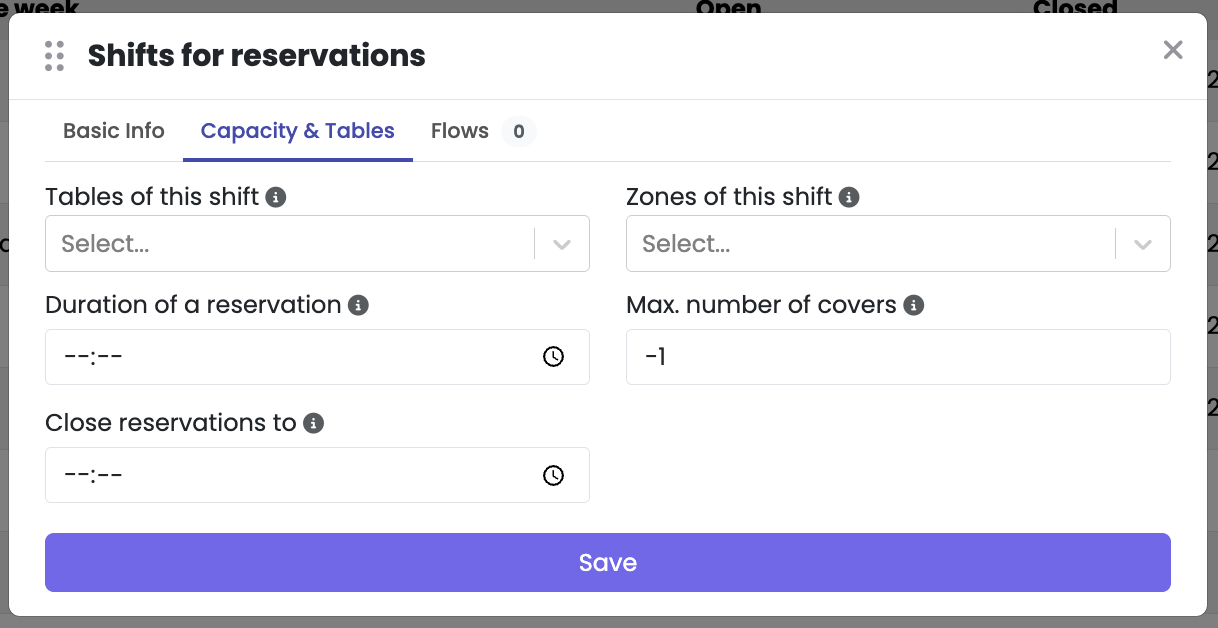
Secondly configure capacity and tables:
Tables & Zones Per Shift
You can assign specific tables or zones to a shift. Only these tables/zones will be available for reservation.
👉 Useful if you want to exclude certain tables from online bookings.
Duration of a Reservation
If you leave this field empty, the default settings from the Module Settings will apply.
There, you can define different durations depending on group size.
Max Number of Covers
Keep this set to -1 by default, unless you want to set a fixed limit.
With -1, the maximum is automatically calculated based on the floor plan.
Available From & Until
Filling in both fields creates a temporary shift.
This overrides all previously set shifts for the specified period.
Close Reservations At
If you fill in a time here, reservations for this shift will close on the day itself.
For example: if set to 09:00, no more reservations can be made for the lunch shift after 9:00 AM.
Deposit Per Person
You can set a deposit per person.
⚠️ Note: Your Mollie account must be connected for this to work.
Using Shiftflows
Within a shift, you can set different flows and group limits. This makes it possible to spread reservations throughout the day and set a limit on which quantity of certain group sizes will be accepted.
Flow limits and availability
When the maximum number of covers in a flow is reached:
- The flow automatically becomes invisible for new reservations
- Customers no longer see this option in the booking system
Flow Limits & Availability
When the maximum number of covers for a flow is reached:
The flow becomes automatically invisible for new reservations.
Customers will no longer see this time option in the booking system.
Benefits of This System:
Controlled guest flow
Optimal distribution of reservations across the shift
No overbooking of specific time slots
Better planning for your kitchen and service staff
Example in Practice::
If you set flows like:
12:00–13:00 (max. 25 covers)
13:00–14:00 (max. 30 covers)
…then guests will automatically be directed to the next available time slot once a flow is full.
Comments
0 comments
Article is closed for comments.